> ## Documentation Index
> Fetch the complete documentation index at: https://docs.shiipp.com/llms.txt
> Use this file to discover all available pages before exploring further.
# Not Receiving Emails
> Troubleshooting guide for when customers are not receiving emails from the system.
# Troubleshooting Email Delivery
If customers or staff report that they are not receiving emails (such as pre-alerts, invoices, or marketing broadcasts) from the system, follow this guide to identify and resolve the issue quickly.
The first step is always to check the system's **Email Logs** to see if the email was generated and sent by the platform. You can check these logs in two places:
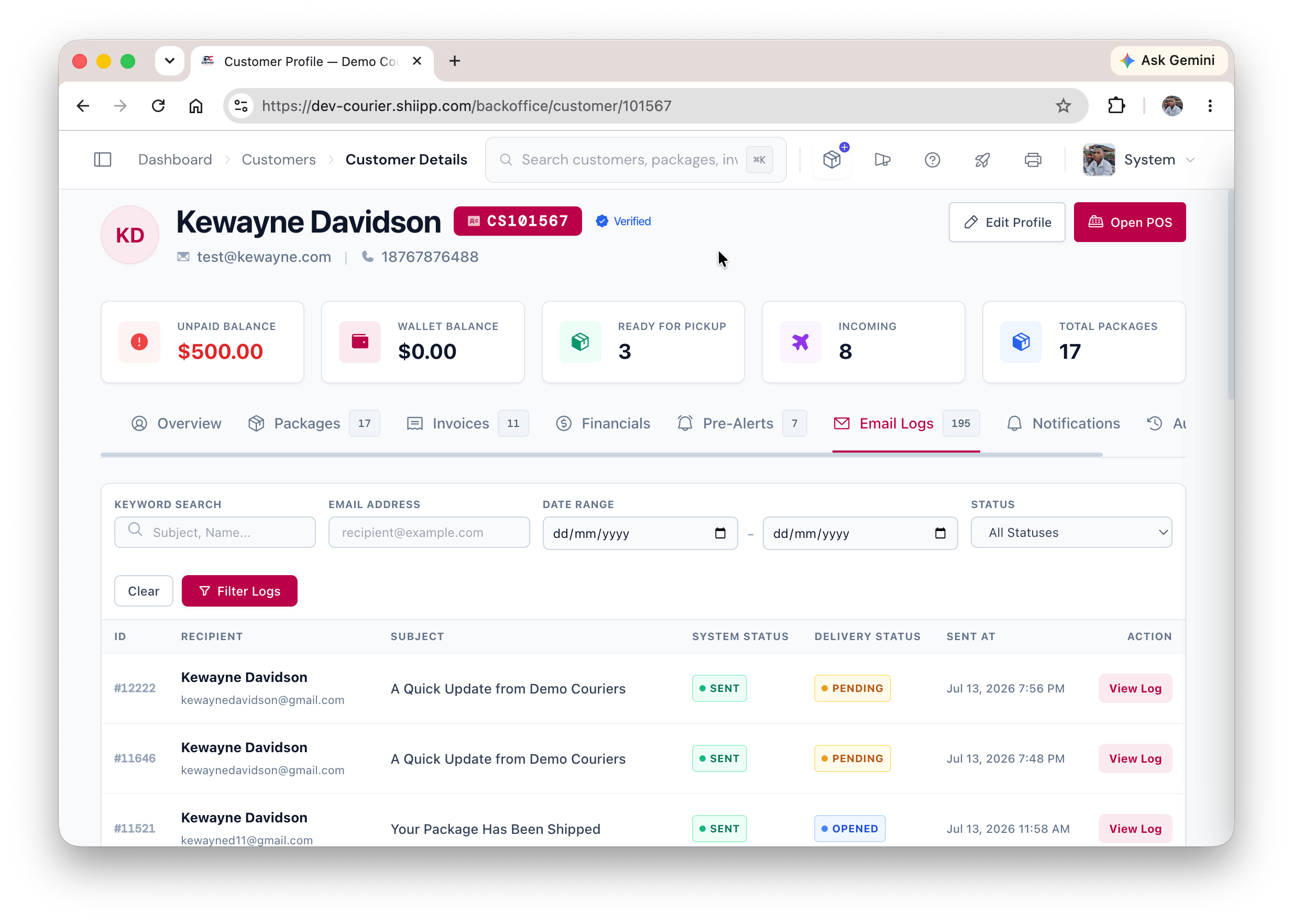
Go to **Operations > Customers**, search for the user, open their profile, and click on the **Emails** tab. This will show a history of emails sent specifically to this customer.
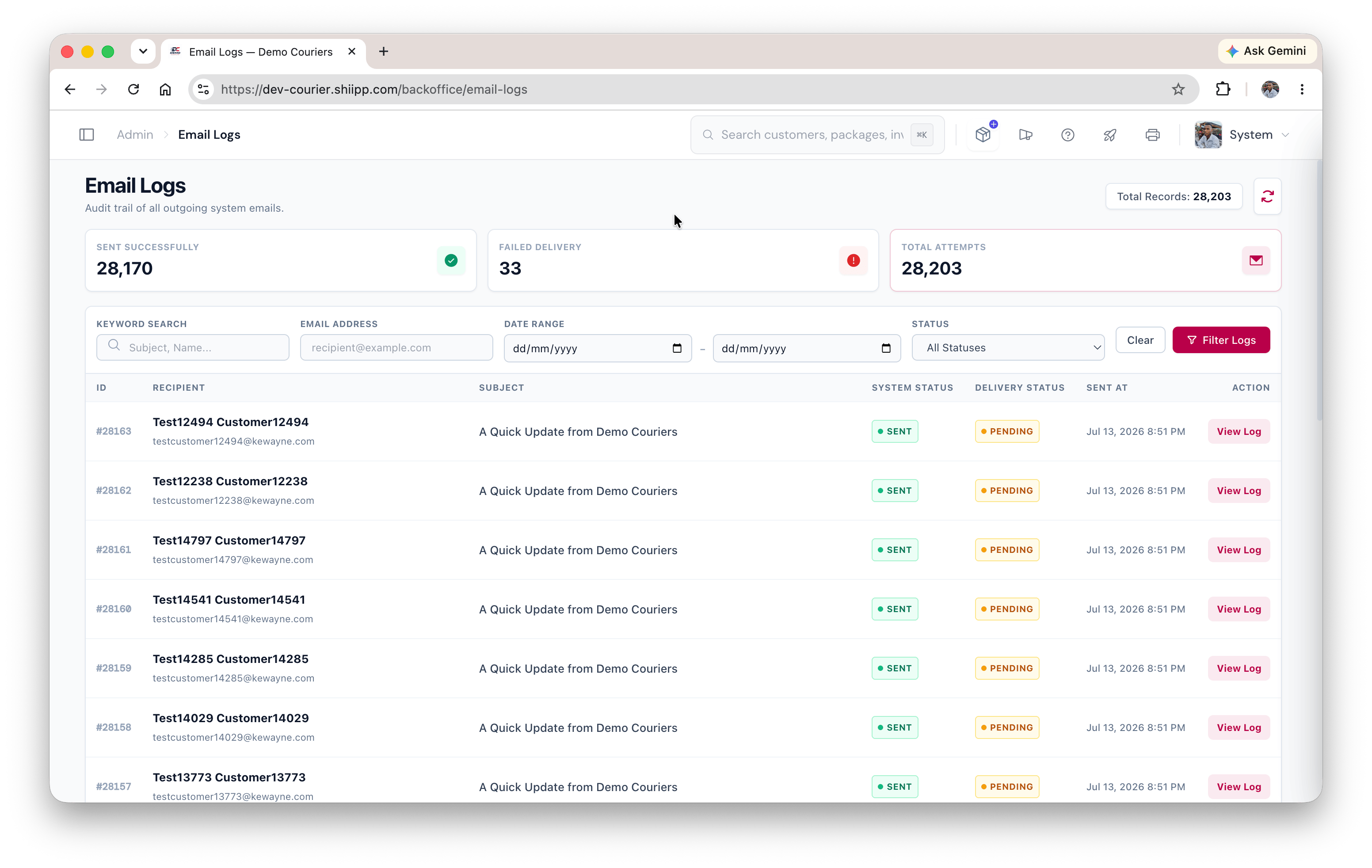
 Navigate to **Administration > Email Logs**. Here you can search for the recipient's email address or filter by date.
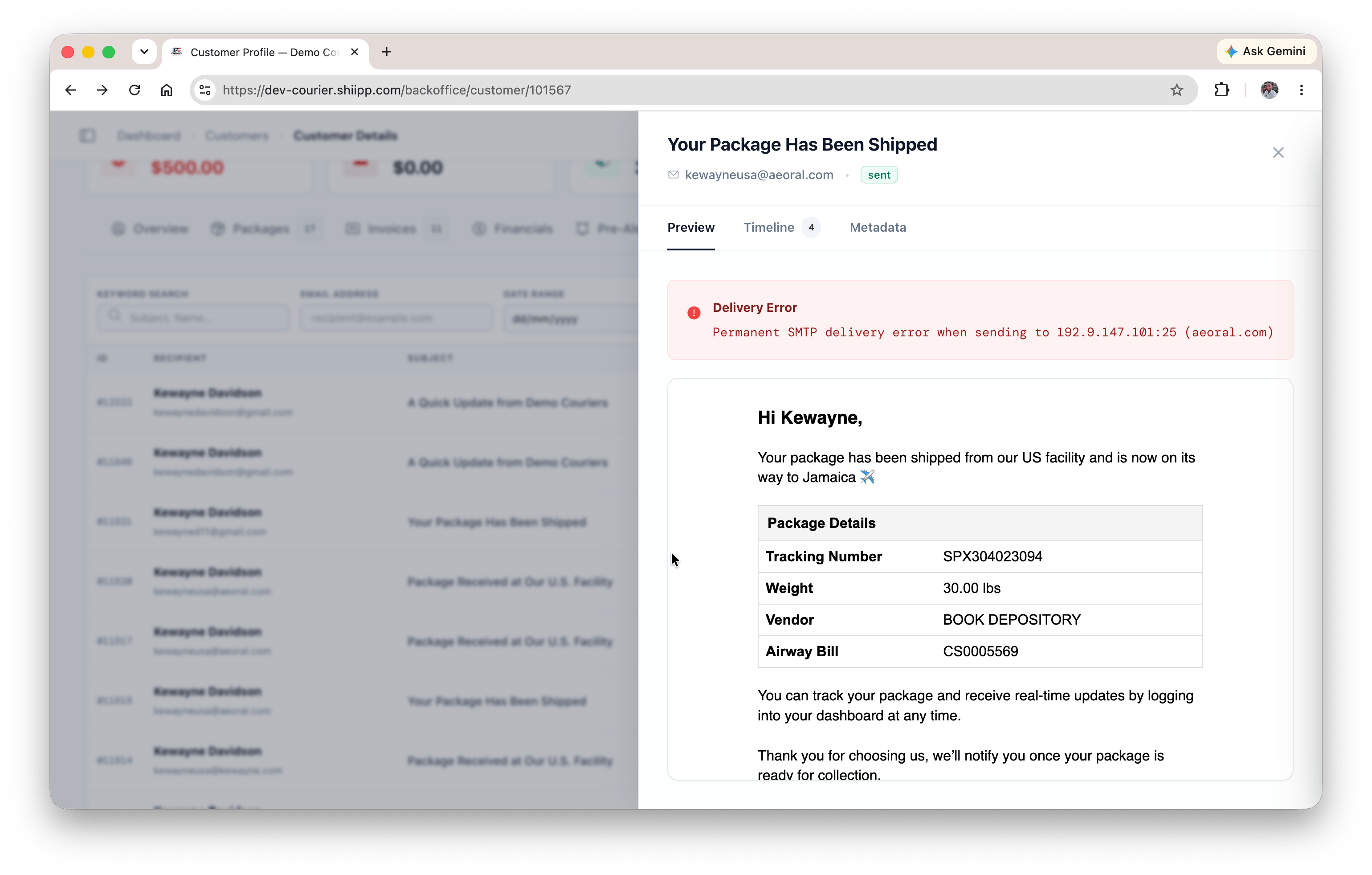
 When reviewing the logs, check the **Delivery Status** and the **Error Message**. The system receives data directly from the email server providing specific reasons if an email fails.
 ### Common Statuses and Errors:
The email was successfully delivered to the recipient's email provider. If they still can't see it, it is likely in their **Spam** or **Junk** folder.
The log might show an error like `Invalid address: (to): name@gmail` or `user@2345`. This means the email address is malformed (e.g., missing `.com`).
Errors such as `SMTP Error: Could not authenticate` or `SMTP Error: Could not connect to SMTP host` indicate an issue with your system's SMTP or email provider configuration.
The email was rejected by the recipient's server. This often happens if the email address doesn't exist or their inbox is full. Example error: `Permanent SMTP delivery error`.
If an email bounces multiple times, the provider may place it on a suppression list to protect your sender reputation. Example error: `Recipient is on the suppression list (reason: too many hard fails)`.
If there is no log entry at all, the system never triggered the email. Check if the action that triggers the email (e.g., package status change) actually occurred.
As seen from the "Invalid Address" errors above, emails are frequently not received simply because of a typo in the customer's profile.
1. Go to **Operations > Customers** and search for the user.
2. Click on their name to open the **Customer Profile**.
3. Verify that the email address on file is exactly correct (checking for missing `.com`, misspelled domains, etc.).
If there's a typo, update their profile immediately to ensure future communications are delivered.
If the Email Logs show the message as sent but the customer hasn't seen it, their email provider (e.g., Gmail, Outlook, Yahoo) might have filtered it.
* Ask the customer to check their **Spam**, **Junk**, or **Promotions** folder.
* Advise them to add your sending email address to their contacts or **"Safe Senders"** list to ensure future emails go straight to their inbox.
If *no one* is receiving emails and the logs show consistent failures (or if no logs are being generated for system-wide actions), there may be an issue with the underlying email configuration.
* Verify that your SMTP settings or Email Provider integration is correctly set up.
* Check if your email provider account is in good standing (e.g., not suspended, no billing issues).
Ensure your domain's DNS records (SPF, DKIM, DMARC) are properly configured. Poor DNS configuration can cause major email providers to silently drop your emails.
***
## Still Need Help?
If you have gone through these steps and emails are still not being delivered, please contact support and provide details from the Email Logs.
### Common Statuses and Errors:
The email was successfully delivered to the recipient's email provider. If they still can't see it, it is likely in their **Spam** or **Junk** folder.
The log might show an error like `Invalid address: (to): name@gmail` or `user@2345`. This means the email address is malformed (e.g., missing `.com`).
Errors such as `SMTP Error: Could not authenticate` or `SMTP Error: Could not connect to SMTP host` indicate an issue with your system's SMTP or email provider configuration.
The email was rejected by the recipient's server. This often happens if the email address doesn't exist or their inbox is full. Example error: `Permanent SMTP delivery error`.
If an email bounces multiple times, the provider may place it on a suppression list to protect your sender reputation. Example error: `Recipient is on the suppression list (reason: too many hard fails)`.
If there is no log entry at all, the system never triggered the email. Check if the action that triggers the email (e.g., package status change) actually occurred.
As seen from the "Invalid Address" errors above, emails are frequently not received simply because of a typo in the customer's profile.
1. Go to **Operations > Customers** and search for the user.
2. Click on their name to open the **Customer Profile**.
3. Verify that the email address on file is exactly correct (checking for missing `.com`, misspelled domains, etc.).
If there's a typo, update their profile immediately to ensure future communications are delivered.
If the Email Logs show the message as sent but the customer hasn't seen it, their email provider (e.g., Gmail, Outlook, Yahoo) might have filtered it.
* Ask the customer to check their **Spam**, **Junk**, or **Promotions** folder.
* Advise them to add your sending email address to their contacts or **"Safe Senders"** list to ensure future emails go straight to their inbox.
If *no one* is receiving emails and the logs show consistent failures (or if no logs are being generated for system-wide actions), there may be an issue with the underlying email configuration.
* Verify that your SMTP settings or Email Provider integration is correctly set up.
* Check if your email provider account is in good standing (e.g., not suspended, no billing issues).
Ensure your domain's DNS records (SPF, DKIM, DMARC) are properly configured. Poor DNS configuration can cause major email providers to silently drop your emails.
***
## Still Need Help?
If you have gone through these steps and emails are still not being delivered, please contact support and provide details from the Email Logs.